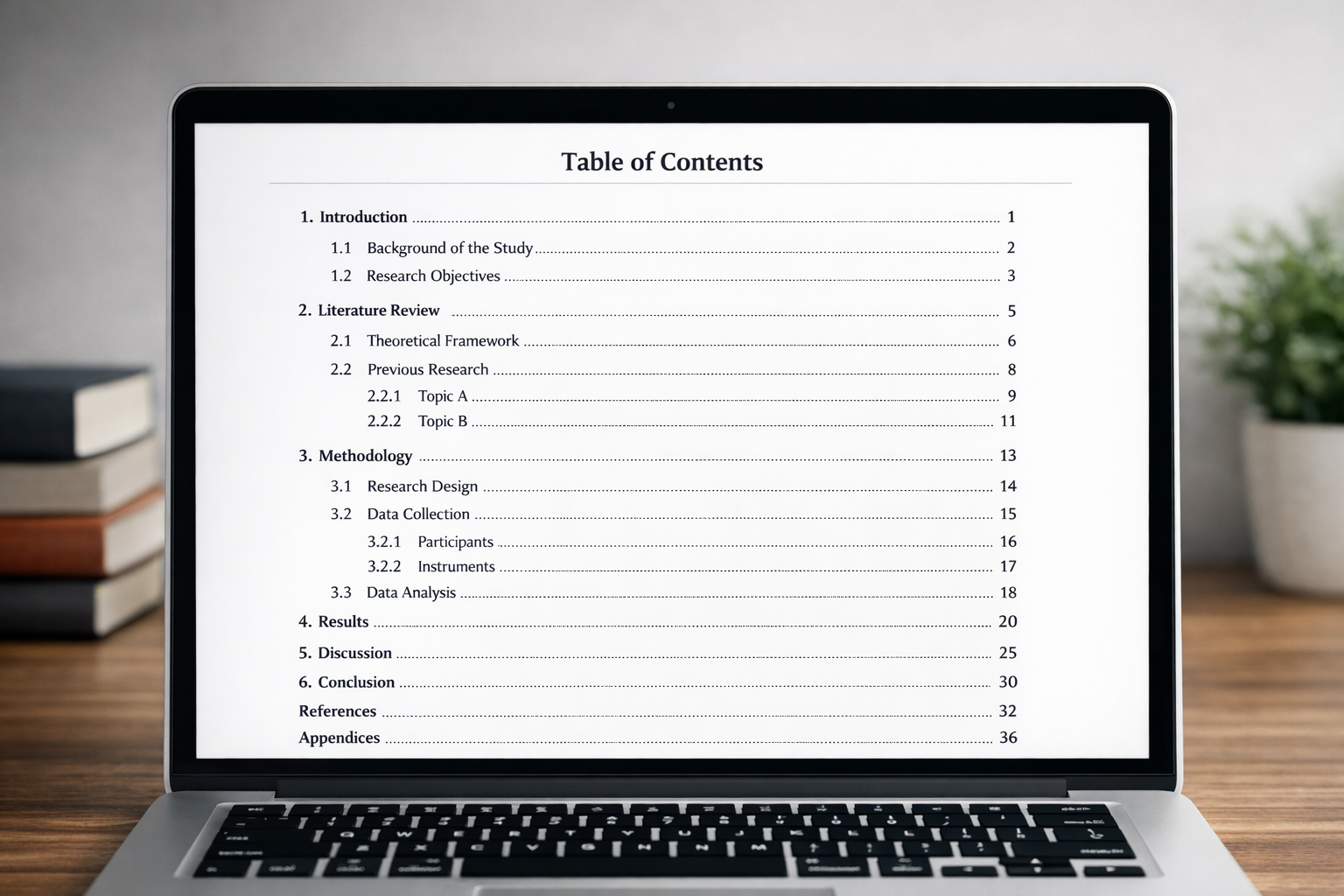
Formatting a thesis requires precision, consistency, and strict adherence to university guidelines. Among the most technically challenging components for many students is the table of contents. Understanding how to format table of contents in Word for thesis documents is essential because it directly reflects the structure, hierarchy, and professionalism of your academic work.
A properly formatted table of contents (TOC) does more than list chapter titles—it demonstrates logical organisation, consistent heading structure, and careful attention to detail. Examiners often review the TOC before reading the full thesis, using it as a roadmap to evaluate scope and coherence. This guide provides a complete, step-by-step explanation of how to create, customise, and maintain a flawless table of contents in Microsoft Word for your thesis.
Why a Properly Formatted Table of Contents Matters in a Thesis
The table of contents is not a decorative element; it is an academic navigation tool. In long documents such as theses and dissertations, readers rely on it to locate chapters, subchapters, appendices, and references quickly. A poorly formatted TOC suggests structural inconsistency and weak document control, which may undermine examiner confidence before they engage with your research.
Most universities require that the table of contents reflect exact wording, spelling, capitalisation, and page numbering as they appear in the body of the thesis. Manual typing is strongly discouraged because it creates alignment errors and requires constant updating. Instead, Word’s automated heading and TOC functions should be used to ensure accuracy and efficiency.
Critical rule: Never create a thesis table of contents manually. Always use Word’s automatic heading styles and TOC generator.
Preparing Your Thesis Before Generating the Table of Contents
Before you insert a table of contents, your document must be properly structured. Word generates a TOC based on heading styles—not on font size, bold formatting, or manual numbering. Therefore, applying structured heading levels is the foundation of correct formatting.
Use Word’s built-in styles located under the “Home” tab. These include Heading 1, Heading 2, Heading 3, and so on. Each chapter title should typically be formatted as Heading 1, main subsections as Heading 2, and lower-level sections as Heading 3. Maintaining a consistent hierarchy ensures that Word recognises and organises your thesis correctly.
Recommended Thesis Heading Hierarchy
The following table illustrates a standard structure commonly used in theses:
| Thesis Section | Recommended Word Style | TOC Level |
|---|---|---|
| Chapter Titles | Heading 1 | Level 1 |
| Main Subsections | Heading 2 | Level 2 |
| Sub-Subsections | Heading 3 | Level 3 |
| Minor Divisions (if required) | Heading 4 | Level 4 |
This structured approach ensures that your table of contents will display a clear academic hierarchy without manual intervention.
Step-by-Step: How to Format Table of Contents in Word for Thesis
Once headings are correctly applied, you can generate your table of contents using Word’s automatic feature. Follow this structured process carefully:
- Place your cursor where the table of contents should appear (usually after the abstract).
- Click the “References” tab in Word.
- Select “Table of Contents.”
- Choose “Custom Table of Contents” for advanced control.
- Select the number of heading levels you wish to display.
- Click “OK” to generate the TOC.
Word will automatically pull all headings into the TOC, format indentation according to hierarchy, and insert right-aligned page numbers with leader dots. This automated system ensures that page numbers update dynamically when content shifts.
Customising Your Thesis Table of Contents
University formatting guidelines often require specific spacing, font type, indentation, or leader styles. You can modify TOC formatting without breaking its automatic functionality. Within the “Custom Table of Contents” window, select “Modify” to adjust font style, spacing, and indentation for each TOC level.
When customising, ensure consistency with the rest of your thesis formatting. If your thesis uses Times New Roman 12-point font with double spacing, your TOC should follow the same standards unless otherwise specified. Avoid manually editing text inside the TOC itself, as changes will disappear when the table updates.
Controlling Page Number Formatting
Theses often require different numbering styles for preliminary pages (Roman numerals) and main chapters (Arabic numerals). To achieve this:
- Insert section breaks between front matter and main chapters.
- Format page numbers separately in each section.
- Ensure “Link to Previous” is disabled when necessary.
This ensures that Roman numerals (i, ii, iii) apply to preliminary pages while Arabic numerals (1, 2, 3) begin with Chapter 1.
Updating the Table of Contents After Edits
One of the most common mistakes students make is failing to update the table of contents after revising their thesis. Since Word generates the TOC dynamically, any changes to headings or page numbers require an update.
To update:
- Click anywhere inside the table of contents.
- Select “Update Table.”
- Choose “Update entire table.”
This refreshes both page numbers and headings. Failing to update may result in mismatched page references—a common issue flagged by examiners.
Examiner expectation: The table of contents must match headings and page numbers exactly at the time of submission.
Common Mistakes When Formatting a Thesis Table of Contents
Even with Word’s automation, errors frequently occur. One major issue is inconsistent use of heading styles. If some chapter titles are manually bolded instead of styled as Heading 1, they will not appear in the TOC. Another common problem is manual numbering of chapters, which interferes with automatic updating.
Students also sometimes delete leader dots or manually edit indentation, breaking the automatic formatting structure. These manual edits may appear correct temporarily but will reset upon updating. Consistency and reliance on built-in tools are essential for stability.
Best Practices for a Professional Thesis Table of Contents
To ensure your thesis table of contents meets academic standards, follow these best practices:
- Apply heading styles from the beginning of your writing process.
- Use section breaks for different numbering formats.
- Generate the TOC automatically.
- Update the TOC before final submission.
- Cross-check formatting with university guidelines.
Taking these steps prevents formatting crises close to submission deadlines and demonstrates academic professionalism.
Final Advice on Formatting Table of Contents in Word for Thesis Submission
Mastering how to format table of contents in Word for thesis documents is not merely a technical skill—it reflects organisational clarity and academic discipline. A clean, automatically generated TOC strengthens examiner navigation and enhances the credibility of your research presentation.
By applying structured heading styles, using Word’s automatic tools, and maintaining consistent formatting throughout the drafting process, you can eliminate common formatting errors and submit your thesis with confidence. Attention to these structural details ensures that your research is presented with the professionalism it deserves.

Comments